SETUP GUIDE
Let’s get your MeWatch connected
Four steps, about 15 minutes. Every step has a short video, so you see exactly what to tap.
- 4 steps
- About 15 minutes
- Free parent app
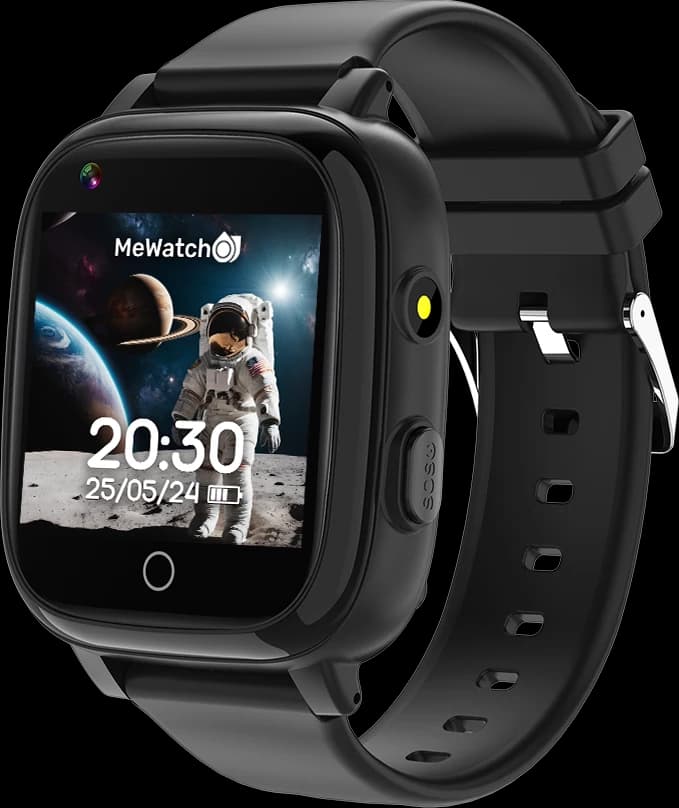
Step 1 of 4
Activate the SIM
The SIM is already inside your MeWatch. Activate it once, online, before anything else.
Don’t download the app yet. First the line, then the app.
- 1Activate the SIM online. The activation page walks you through it.
- 2Line active? Turn the watch fully off, wait 10 seconds, and turn it back on.
- 3From the watch, call your own phone. The call goes through? The line works.
Powered by SpeedTalk
Line not active yet? Wait for it first, then call. Active? On the watch, open Settings, find VoLTE, and switch it on. Turn the watch off and on, and call again. Still nothing? Contact MeWatch support.
Contact MeWatch supportStep 2 of 4
Download the parent app
YQT Smart is the free parent app for every MeWatch. Install it on the phone you’ll use to look after your child.
Only once the watch can make a call (step 1).
- 1Tap the button for your phone below, or search for YQT Smart in your app store.
- 2Install it and open it. You’ll land on the Login screen.

YQT Smart
Free · iPhone and Android
On a computer right now? Open me-watch.com/activate on your phone and tap the button there.
Step 3 of 4
Create your account
Open YQT Smart. Before you fill anything in, set the region.
Tap Region at the bottom of the screen and choose North America. Any other region won’t work.
- 1Tap Sign Up, at the top right.
- 2Enter your email, then type the picture code in small letters only, even if it shows capitals.
- 3Pick a password with 8 to 16 characters, using letters and numbers.
- 4Check that the region says North America, tick the agreement box, and tap Confirm Registration.
Logging out won’t fix it, and don’t remove and add the watch again. Contact MeWatch support, and we’ll reset it for you.
Contact MeWatch supportStep 4 of 4
Pair the watch
After you sign up, the Add Device screen opens. Tap the scan icon at the right end of the code box, and the camera opens.
- 1Scan the REG CODE QR on the sticker on the back of the watch, not the barcode under it.
- 2No sticker? On the watch, open Registration Code and scan the QR on its screen.
- 3Can’t scan? Type the numbers under the QR code by hand.
- 4Give the watch a nickname, tap I am to choose who you are, and tap OK.
- 5To see the location, tap the map, then Refresh at the bottom. The first location can take up to 10 minutes.
You’re all set
See your watch on the map? You’re done. Welcome to the MeWatch family!
At first that’s normal: it can take up to 10 minutes, so tap Refresh a few more times. Still offline? Make sure the watch can make a call, turn it off and on again, and try once more.
Contact MeWatch support